For Users Who Prepare Accounts in Excel with GL Names Across Columns
If you prepare your accounts in Excel and your General Ledger (GL) names are placed across the columns instead of down the rows, this article is for you. It explains how to reshape your data so it can be imported smoothly into Luca.

Xian Hui
6 November 2025
Quick answer
How do I import an Excel file with GL names across columns into Luca?
Luca expects each row to be a single GL record with consistent column headers like Account Name, Debit, Credit, or Amount. If your GL names are across columns, use Excel's Power Query to unpivot the columns. Select your data, go to Data, Get and Transform, From Table/Range, select the GL columns, then Transform, Unpivot Columns. Rename the new columns to Account Name and Amount.
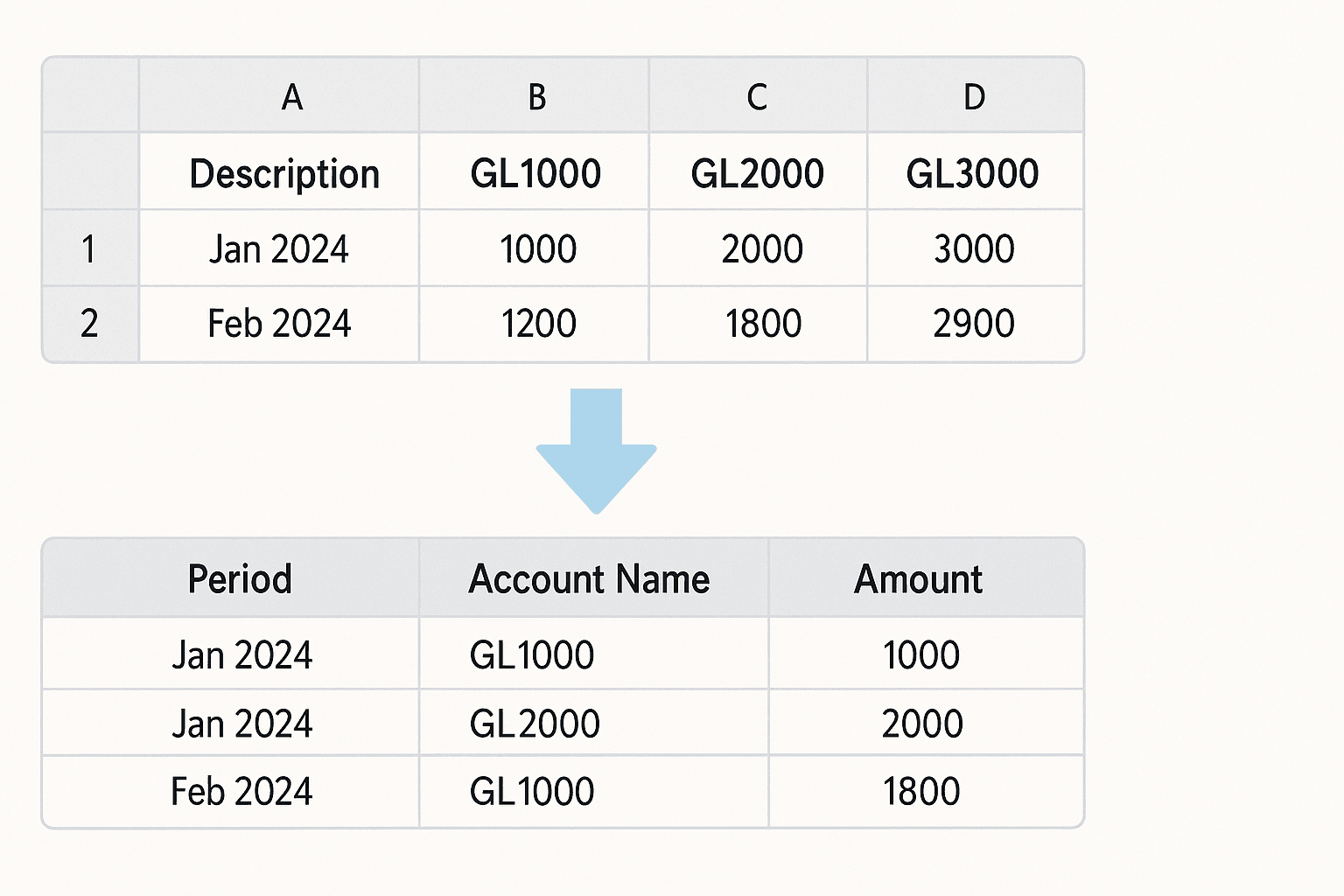
If you prepare your accounts in Excel and your General Ledger (GL) names are placed across the columns instead of down the rows, this article is for you. It explains how to reshape your data so it can be imported smoothly into Luca.
Example Layout

In this layout:
- Each column header represents a GL account.
- Each row represents a reporting period or record.
Why it matters
Luca expects data where:
- Each row is a single GL record (with its account name, amount, and period).
- The column headers represent consistent field names such as Account Name, Debit, Credit, or Amount.
When GLs are spread across columns, Luca cannot identify which amount belongs to which account. The data needs to be reshaped before import.
How to reshape your data (Power Query method)
You can fix this easily using Excel's Power Query feature:
- Select your data range.
- Go to Data > Get & Transform > From Table/Range.
- In Power Query, select all GL columns.
- Choose Transform > Unpivot Columns.
- Rename the new columns to:
- Account Name
- Amount
After transformation, your data should look like this:
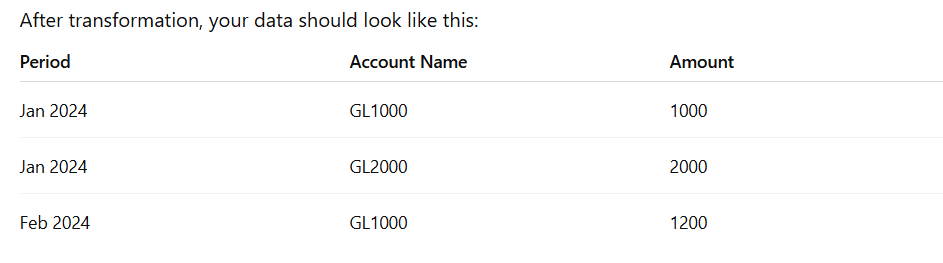
This format is Luca-friendly and works best for data import.
Watch the video
We have prepared a short video tutorial showing how this looks and how to fix it.
Frequently asked questions
Related articles
support
How to Use the File Upload Function
Our file upload feature is designed to make it easy for you to bring your accounting data into our platform, saving you time and effort when preparing financial statements.
support
What Files Do I Need to Prepare Financial Statements in Luca?
List of documents required for FS generation in Luca.
support
How to Edit the Generated Financial Statements
How to edit your FS in Word: add rows, apply styles, and keep it clean.