How to Use the File Upload Function
Our file upload feature is designed to make it easy for you to bring your accounting data into our platform, saving you time and effort when preparing financial statements.

Xian Hui
9 March 2026
Quick answer
How do I upload files into Luca?
Drag and drop or select your Excel or CSV file in Luca. The system automatically detects column headers, maps them to the required data fields, and cleanses the data in the background. Luca supports exports from Xero, QuickBooks Online, Zoho Books, MYOB, and most other accounting software.
Files needed
- For first financial statements since incorporation: General ledger/Trial Balance for the current reporting period.
- For subsequent financial statements: General ledger for both the current and previous reporting periods, as well as the opening trial balance for the previous reporting period (if applicable).
Luca determines account movements based on the total debits or credits of the relevant accounts for each year. For example, additions to property, plant and equipment (PPE) are calculated from the total debits to the PPE cost accounts during the reporting period.
Uploading your file: step-by-step
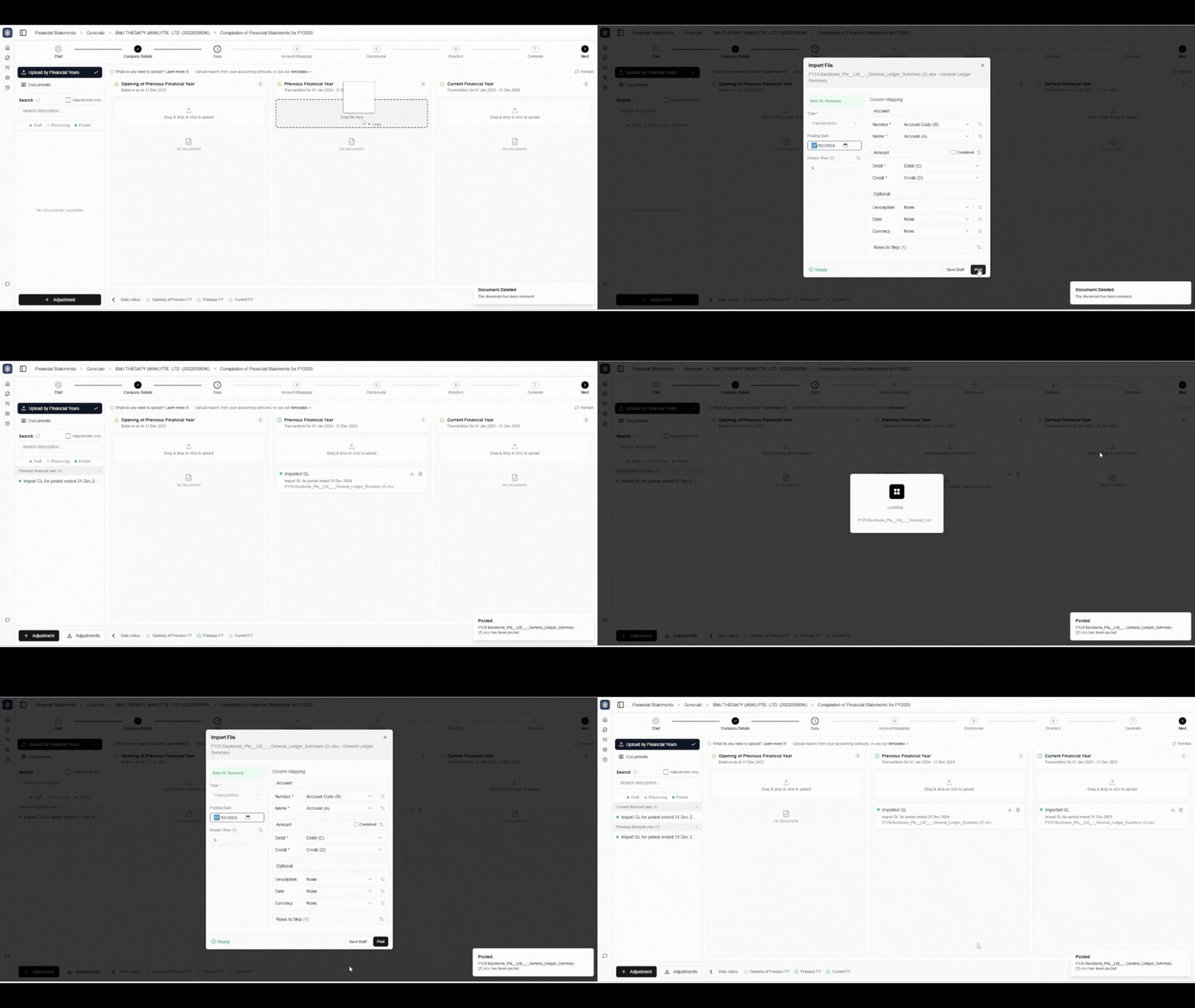
- Drag and drop your file: You can upload either Excel files (.xlsx) or CSV files (.csv). Simply drag your file into the upload area, or click to select a file from your computer.
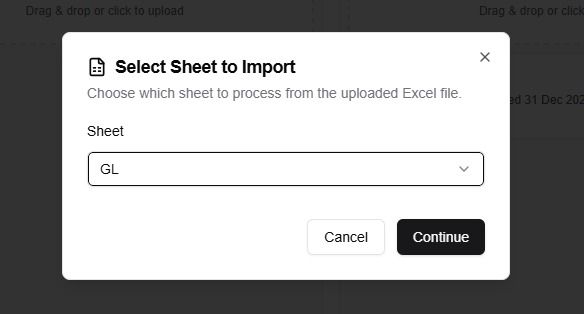
If you upload an Excel file with multiple sheets, the system will prompt you, and you can select the sheet tab you want to use.
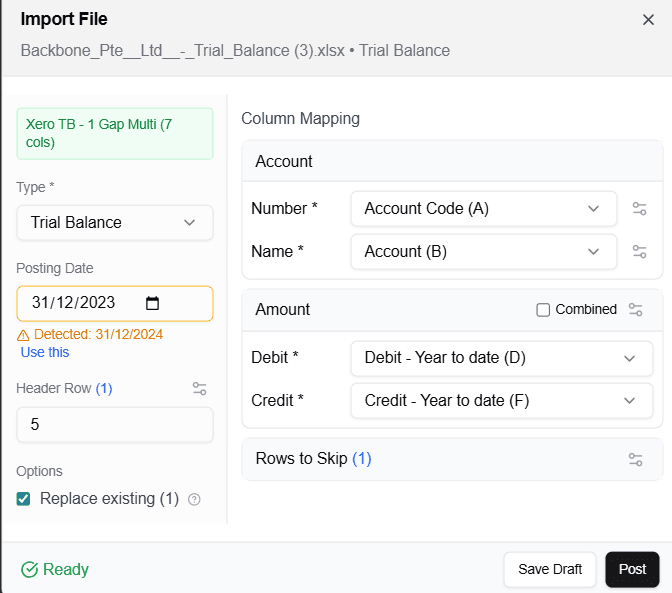
- Automatic header detection and mapping: After you upload your file, our system will scan the top rows to detect your column headers and suggest the best mapping to our required data fields.
-
Press "Post": When you're satisfied with the mapping, press the "Post" button to confirm.
-
Data cleansing: After you save, our system will automatically cleanse and standardise your data in the background, ensuring it is ready for accurate processing and reporting.
Supported report types
We support standard exports from:
Xero
- Trial Balance (In Accounting menu > Reports > Trial Balance) (you should see /1005 in the URL)
- General Ledger:
- General Ledger Summary (In Accounting menu > Reports > General Ledger Summary) (you should see /1070 in the URL)
- General Ledger Detail (In Accounting menu > Reports > General Ledger Detail) (you should see /1071 in the URL)
- Account Transactions (supported, but not recommended as it does not include unrealised forex gains/losses) (In Accounting menu > Reports > Account Transactions) (you should see /1009 in the URL)
QuickBooks Online
- Trial Balance, General Ledger List (In Reports Menu > General Ledger List)
Zoho Books
- Trial Balance, General Ledger
MYOB
- Trial Balance, General Ledger
and more ...
Using other software or Excel?
Our tool is flexible and works with files exported from most of the accounting systems, as well as Excel.
If you have a unique format that the system cannot recognise and prompts for help, please reach out to us at: hello@backbone.sg. The cleansing work is ours, not yours. We will enhance the cleansing logic within days to support your file format.
Frequently asked questions
Related articles
support
For Users Who Prepare Accounts in Excel with GL Names Across Columns
If you prepare your accounts in Excel and your General Ledger (GL) names are placed across the columns instead of down the rows, this article is for you. It explains how to reshape your data so it can be imported smoothly into Luca.
support
What Files Do I Need to Prepare Financial Statements in Luca?
List of documents required for FS generation in Luca.
support
How to Edit the Generated Financial Statements
How to edit your FS in Word: add rows, apply styles, and keep it clean.