How to Edit the Generated Financial Statements
How to edit your FS in Word: add rows, apply styles, and keep it clean.

Xian Hui
15 September 2025
Quick answer
How do I edit the generated financial statements in Word?
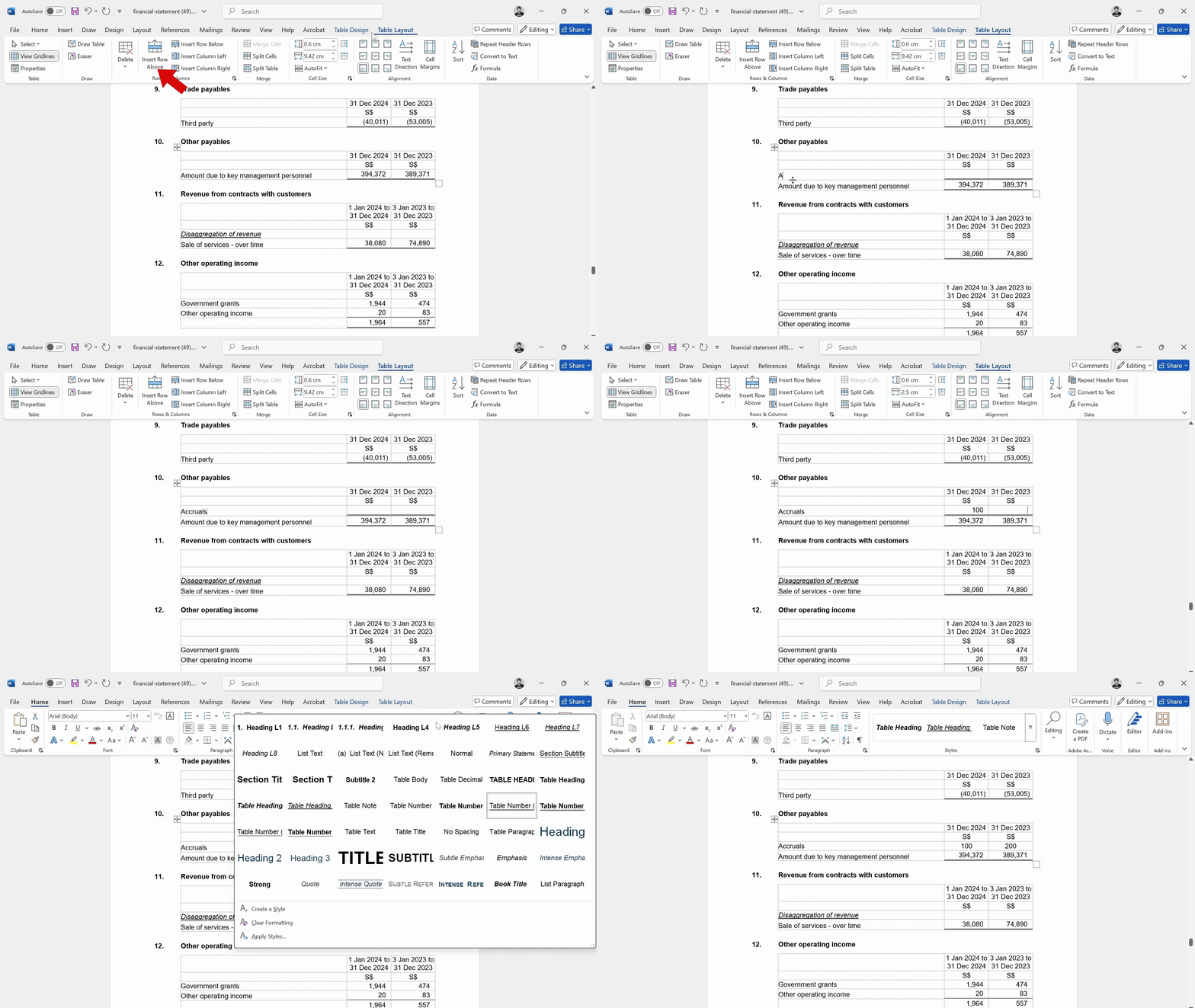
Download and open the .docx file generated by Luca. Navigate to the section you want to edit. To add rows in a table, click inside the table, go to the Table Layout tab, and use Insert Above or Insert Below. To match formatting, highlight the edited text, go to the Home tab, and apply the matching style from the Styles section.
How to Edit the Generated Financial Statements (FS) in Word
Once your financial statements (FS) are generated, they are output in a Word document format. While most of the content is auto-populated, you may still want to make manual adjustments. Here's how to do it easily.
Step-by-step guide
Open the FS Word File
Download and open the .docx file generated by Luca.
Navigate to the Section You Want to Edit
Scroll to the specific note, table, or paragraph you want to change.
To Add or Adjust Rows in a Table:
- Click anywhere inside the table.
- Go to the "Table Layout" tab in the ribbon.
- Use "Insert Above" or "Insert Below" to add a new row.
To Match Formatting with the Rest of the FS:
- Highlight the text or row you've edited or added.
- Go to the "Home" tab.
- In the Styles section, apply the style that matches the original formatting.
Tip
Avoid changing the structure unless necessary. If you frequently make similar changes, reach out to us — we may be able to automate it for you.
Watch the demo
Frequently asked questions
Related articles
library
How to Build a Chart of Accounts that Drives Value
A well-structured chart of accounts is more than a list of account names. This article explains how to design a COA with an output-driven mindset, use numbering conventions effectively, and avoid common pitfalls.
library
Essentials of Financial Statements
Financial statements are the primary tools for assessing an entity's fiscal condition. This article covers the key components, how they fit together, and the steps involved in preparing them.
library
Financial Statements Preparation
Financial statements preparation involves converting trial balance data into a complete set of statements compliant with reporting standards. This article covers the process, common challenges, and how automation can reduce preparation time.